
Introduction
If your Dell Inspiron laptop struggles to hold a charge, a battery replacement may be essential. Changing the battery can significantly enhance your device’s performance and lifespan. This guide will walk you through the replacement process, empowering you to safely and efficiently manage this essential maintenance task without the need for professional help.
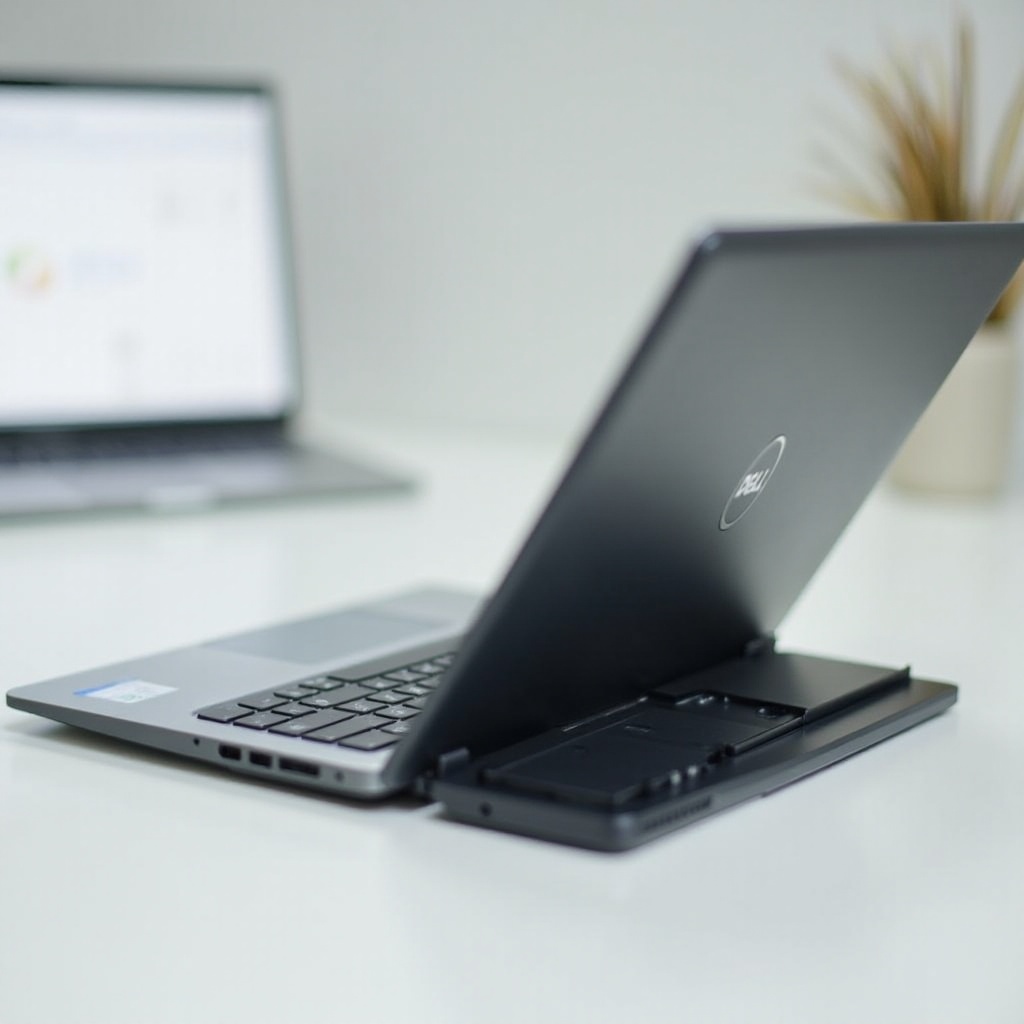
Understanding Your Dell Inspiron Battery
Before proceeding with the battery replacement, it’s crucial to identify the type of battery your Dell Inspiron model requires. Knowing this helps ensure compatibility and a successful replacement.
Identifying Your Battery Model
To find your battery model:
– Examine the underside of your laptop for a label with model details.
– Use ‘System Information’ in Windows to access your laptop’s specifications.
Types of Dell Inspiron Batteries
Dell Inspiron laptops might have either removable or non-removable batteries:
– Removable Batteries: These are typical in older models and easier to replace.
– Non-removable Batteries: Common in newer models, requiring careful handling for access.
Understanding these battery types prepares you for a smooth battery replacement process.

Tools and Preparations for Battery Replacement
Ensuring you have the correct tools and that you follow safety protocols is essential for a smooth battery replacement. Preparation involves gathering necessary equipment and securing your data.
Tools You Will Need
To replace your Dell Inspiron battery, you will need:
– A small Phillips screwdriver
– Plastic opening tools or a spudger
– An antistatic wristband to prevent static damage
Safety Precautions
To ensure safety during replacement:
– Work on a stable, flat surface.
– Use an antistatic wristband to avoid static buildup.
– Unplug the laptop and remove all peripherals.
Backing Up Your Data
Backing up data is essential before making hardware modifications:
– Utilize cloud services or external drives for a complete backup.
– Prevent data loss by securing all important files.
With your tools ready and data secured, you are prepared to proceed with replacing your battery.
Detailed Battery Replacement Guide
Following a step-by-step procedure is key to efficiently removing the old battery and installing the new one.
Shutting Down and Preparing Your Laptop
Ensure your laptop is powered off and unplugged from any power source before starting:
1. Completely shut down your laptop.
2. Close the lid and turn the laptop upside down.
Accessing the Battery Compartment
Access depends on your laptop model:
– For removable batteries: Slide the battery release latch and remove the old battery.
– For non-removable batteries: Unscrew and carefully lift the back panel to expose the battery.
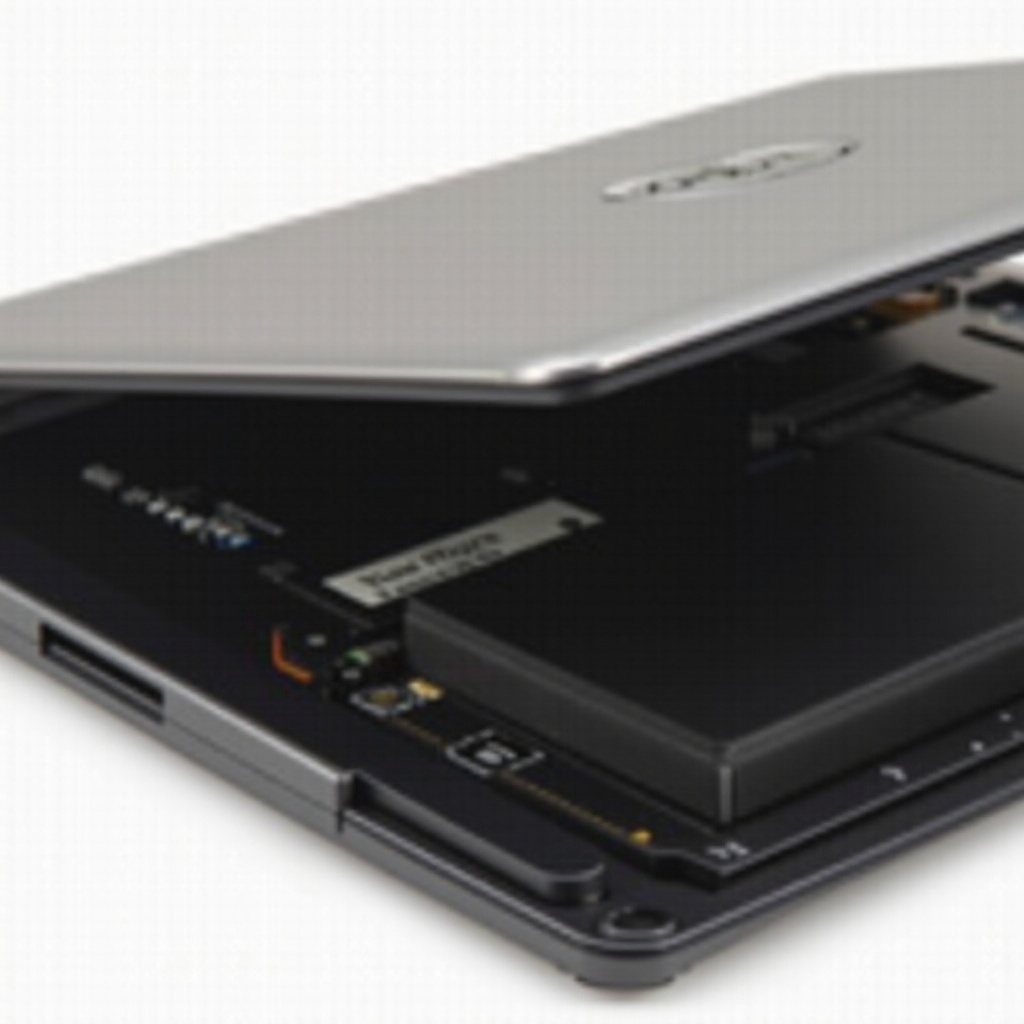
Removing the Old Battery
Once you have access, remove the old battery:
1. Gently disconnect the battery connector from the motherboard.
2. Carefully lift the battery out, ensuring no components are damaged.
Installing the New Battery
Now that the old battery is out, install the new one properly, ensuring it’s secure and connected correctly.
Ensuring Compatibility
Before inserting the new battery:
– Confirm its compatibility with your laptop model.
Securing and Connecting the Battery
To install the new battery:
1. Place it in the compartment, aligning appropriately.
2. Connect the battery to the motherboard securely.
After installation, ensure everything is in place before reassembling your laptop.
Testing and Verifying Battery Installation
Once installed, it’s crucial to verify the success of your replacement through testing and diagnostic checks.
Powering Up Your Laptop
Reconnect your laptop to the power source and press the power button:
– Confirm that your laptop powers on without issues.
Checking Battery Status and Diagnostics
After booting:
– Open the power management settings to check battery charge levels.
– Utilize system diagnostics to confirm the new battery’s detection and performance.
Successful tests indicate a correct replacement, ensuring your laptop is ready for use.
Tips for Optimal Battery Performance
Maximize the performance and lifespan of your new battery with these tips.
Battery Calibration
Calibrate your new battery for accurate power readings:
1. Charge fully, then discharge completely once a month.
Adjusting Power Settings
Extend battery life using power-efficient settings:
– Reduce screen brightness.
– Use ‘Battery Saver’ mode.
Regular Maintenance Tips
Maintain optimal battery performance by:
– Avoiding exposure to extreme temperatures.
– Unplugging the charger when fully charged to avoid overcharging.
Conclusion
Replacing the battery in your Dell Inspiron laptop is straightforward with the right preparation and guidance. By following this comprehensive guide, you can enhance the longevity and functionality of your laptop, making your device more reliable and efficient.
Frequently Asked Questions
How often should I change the battery in my Dell Inspiron laptop?
Typically, batteries should be replaced every 2 to 4 years or when you notice significant charge deterioration.
Can I use a non-Dell battery in my Inspiron laptop?
It is recommended to use Dell-approved batteries to ensure compatibility and maintain warranty conditions.
What should I do if my new battery isn’t charging?
Ensure proper connection and compatibility. If issues persist, contact Dell support for further assistance.