
Introduction
The Amazon Firestick is a go-to device for streaming, transforming any compatible TV into a smart entertainment center. However, what can you do when your Firestick won’t power on your TV? This guide offers detailed troubleshooting methods, ensuring that your streaming experience is quickly restored.
Preliminary Checks
In tackling the issue of your Firestick not powering on your TV, start with the basics. These quick checks often solve the problem with minimal effort.
-
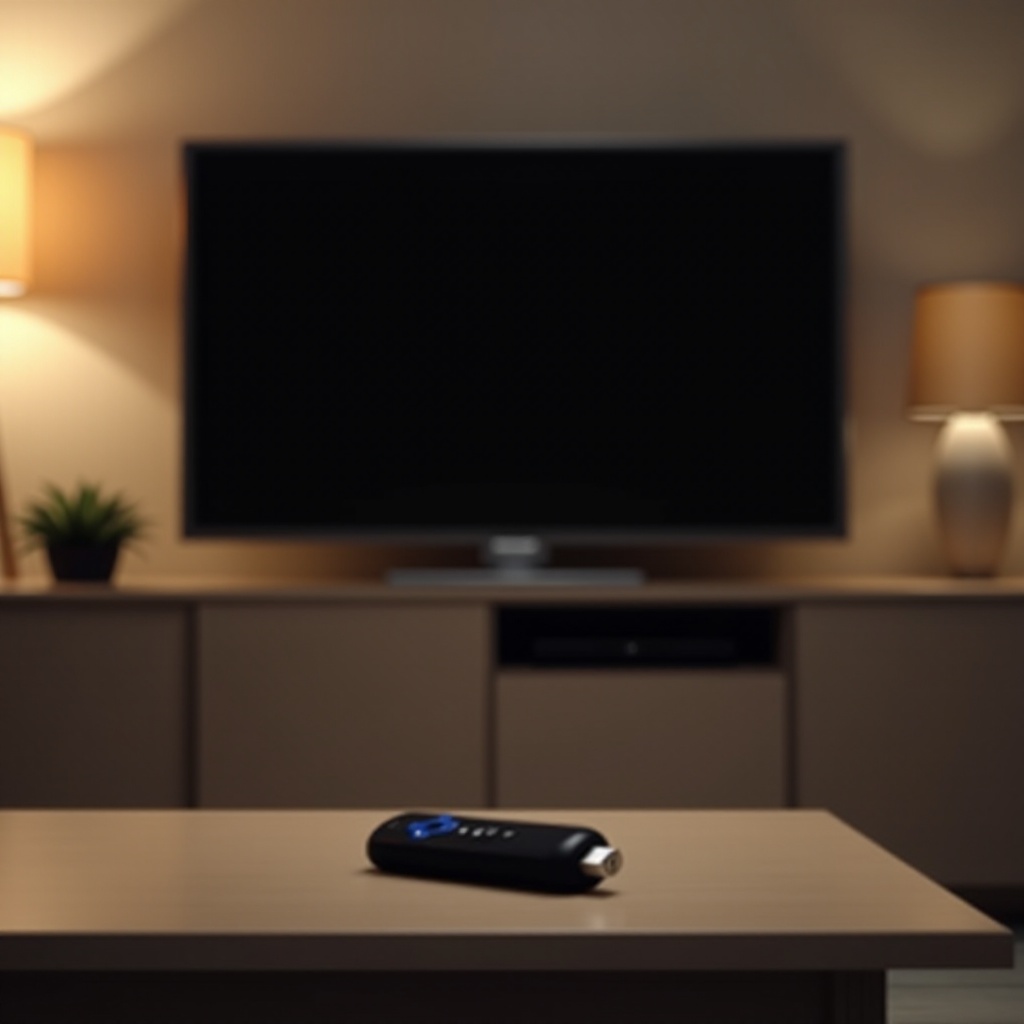
Ensuring TV and Firestick Are Properly Connected: Ensure that your Firestick is securely inserted into the HDMI port. Loose connections can easily disrupt functionality.
-
Checking Power Source and Connections: Make sure your Firestick is connected to a functioning power source using the original power adapter. Avoid plugging it into the TV’s USB port as it may not deliver sufficient power.
These initial steps are simple, yet critical, in eliminating basic connection errors before moving on to more complex solutions.
Firestick Power Cycling
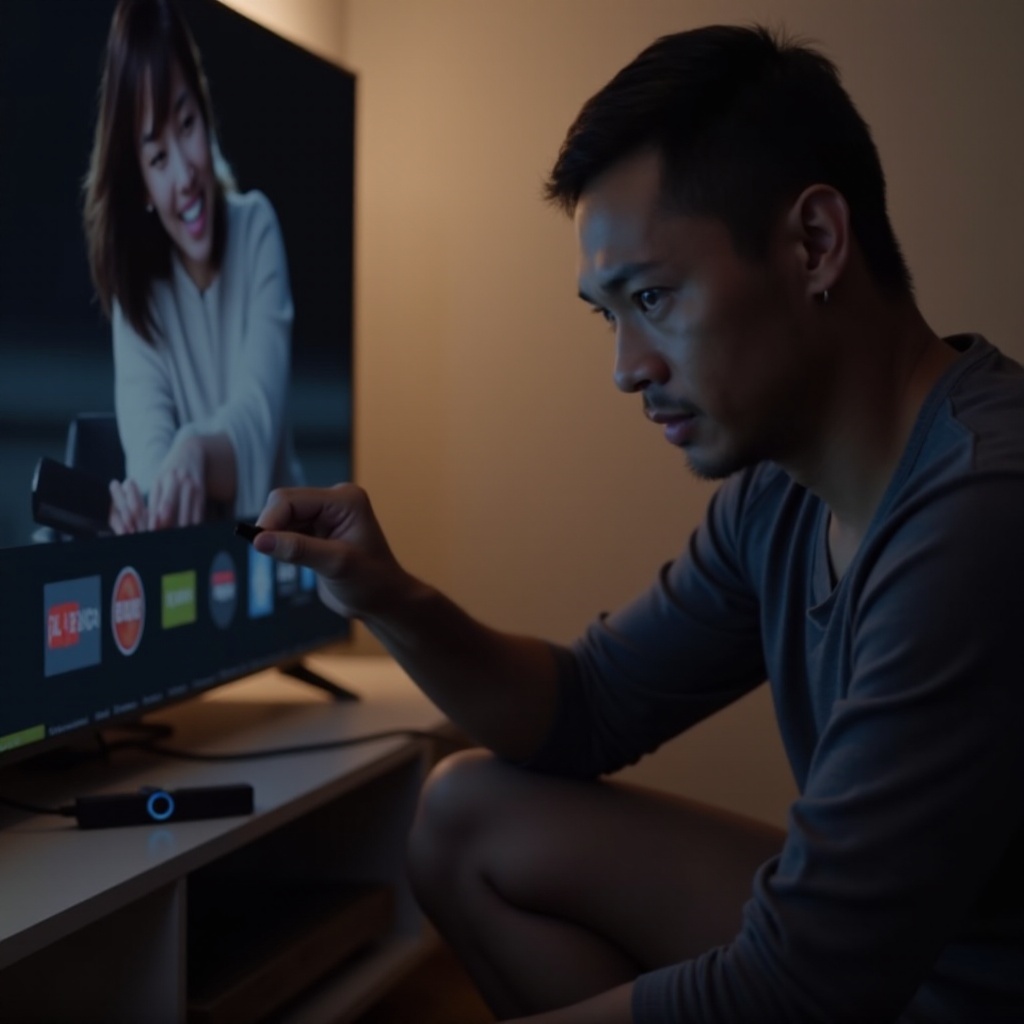
If the Firestick still refuses to cooperate, a power cycle can sometimes clear the problem. This technique resets the device and can often restore operation.
- Steps to Power Cycle Your Firestick:
- Disconnect the Firestick from the HDMI port.
- Unplug it from the power outlet.
- Wait approximately 60 seconds.
- Reconnect to both ports and ensure the power outlet is working.
This action resets the internal systems, often resolving minor glitches that might have frozen the Firestick.
TV-Specific Troubleshooting Steps
Sometimes the problem is less about the Firestick and more about your TV setup. Adjusting your TV settings might be the solution.
-
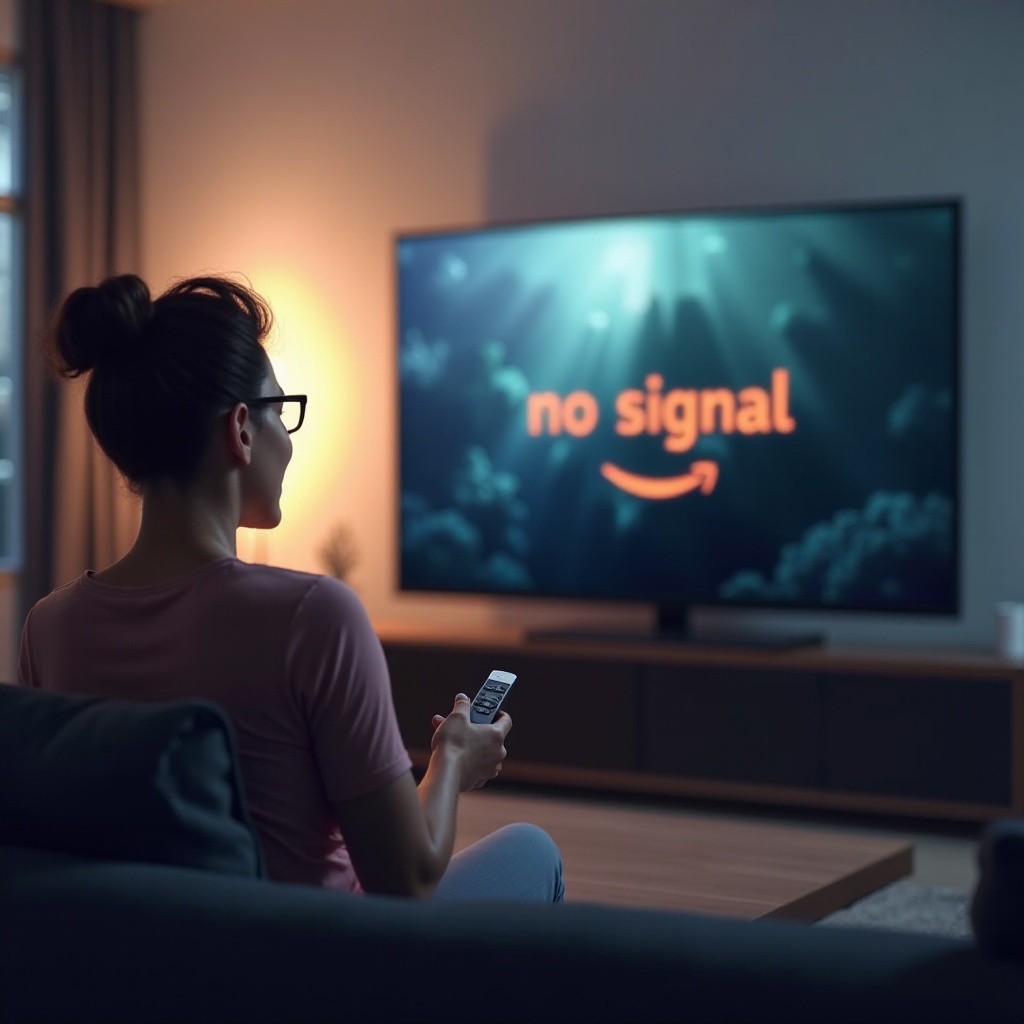
Checking TV Input Source: Use the TV remote to select the appropriate HDMI input. Incorrect input settings can prevent the Firestick from displaying.
-
Verifying TV’s Power and Settings: Ensure your TV is powered and correctly operating. Test other devices in the same HDMI port to rule out TV port issues. Keeping your TV’s software updated might also help avoid compatibility problems.
With your TV settings verified, you can proceed to check the Firestick itself for more specific issues.
Analyzing Firestick Hardware Issues
Persistent issues might be linked to the Firestick’s hardware. A closer look can identify whether there’s a need for a replacement or repair.
-
Inspecting for Physical Damage: Examine the Firestick for any visible damage that could impede performance.
-
Consider USB Port Problems: Testing the Firestick on another HDMI port or TV can confirm if the issue lies with the Firestick or a specific port.
These analyses help determine if the Firestick itself is at fault or if the problem can be easily adjusted.
Software and Firmware Solutions
Updates and restarts of the Firestick software are common solutions for various issues. Ensuring software is up to date is always a good practice.
-
Restarting the Firestick Software: Use the remote to perform a soft reset. Press ‘Select’ and ‘Play’ together for five seconds to restart the device.
-
Updating Firestick Firmware: Navigate to Settings > My Fire TV > About > Check for System Update to verify you have the latest firmware.
Software updates often resolve bugs and improve device compatibility and performance.
Additional Solutions
If none of the previous solutions have worked, more extensive resets or professional guidance may be necessary.
-
Factory Reset Steps and Cautions: A factory reset will revert the Firestick to its original state, purging all personal data. Proceed with caution by backing up important information.
Navigate to Settings > My Fire TV > Reset to Factory Defaults to carry out this operation. -
Hard Reset Option Using Settings: For a swift reset, press and hold the ‘Back’ and ‘Right’ buttons on your remote for 10 seconds.
Make sure to save crucial data beforehand, as these methods will erase everything on the device.
When to Seek Professional Assistance
Continual issues may signal the need for expert help, particularly when all other avenues have been exhausted.
-
Signs It’s Time for Professional Help: If the Firestick remains unresponsive after thorough checks, contacting a professional can prevent further damage.
-
Warranty and Customer Support Options: Check your warranty status and reach out to Amazon’s support for repairs or replacement options. This assures professional intervention, maintaining device integrity.
Going through professional channels ensures safe device handling and the potential for a replacement if under warranty.
Conclusion
Following this troubleshooting guide should help resolve issues with a Firestick not turning on your TV. When all else fails, professional assistance guarantees you’re not left without your streaming services.
Frequently Asked Questions
Why won’t my Firestick turn on even after a reset?
If power issues or hardware malfunctions persist despite a reset, further inspection or replacement might be needed.
Can a faulty HDMI port prevent my Firestick from turning on?
Yes, a malfunctioning HDMI port can stop the Firestick from displaying on your TV.
How do I check if my Firestick is damaged?
Look for physical damage and try connecting the Firestick to different TVs to isolate the fault.